Load data from Amazon Kinesis to Google BigQuery
This guide will help you load data from Amazon Kinesis into
Google BigQuery using omniload — a simple yet powerful data
loader tool.
By the end of this guide, you’ll have your Kinesis data securely stored in BigQuery.
Overview of omniload
omniload is a polyglot data loader framework and command-line tool that simplifies data ingestion by allowing users to load data from a source to a destination using simple command-line flags.
omniload Command
omniload ingest \
   --source-uri '<your-source-uri>' \
   --source-table '<your-schema>.<your-table>' \
   --dest-uri '<your-destination-uri>' \
   --dest-table '<your-schema>.<your-table>'
omniload ingest: Executes the data ingestion process.--source-uri TEXT: Specifies the URI of the data source.--dest-uri TEXT: Specifies the URI of the destination.--source-table TEXT: Defines the table to fetch data from.--dest-table TEXT: Specifies the destination table. If not provided, it defaults to--source-table.
With this command, we connect to the source, retrieve the specified data, and load it into the destination database.
Step-by-step instructions
Amazon Kinesis is a cloud-based service for real-time data streaming and analytics that processes large data streams. To analyze this data, you may need to load it into a data warehouse like Google BigQuery. omniload makes this process simple.
Step 1: Install omniload
Ensure omniload is installed. If not, follow the installation guide.
Step 2: Get AWS Credentials
Kinesis will be our data source. To access it, you need AWS credentials.
Log in to your AWS account.
Navigate to
IAM(Identity and Access Management).Create a new IAM user or select an existing one.
Assign necessary permissions (e.g.,
AmazonKinesisReadOnlyAccess).Generate and copy the
Access Key IDandSecret Access Key.
For more details, read here.
Step 3: Configure Kinesis as Source
--source-uri
This flag connects to your Kinesis stream. The URI format is:
kinesis://?aws_access_key_id=<YOUR_KEY_ID>&aws_secret_access_key=<YOUR_SECRET_KEY>®ion_name=<YOUR_REGION>
Required parameters:
aws_access_key_id: Your AWS access keyaws_secret_access_key: Your AWS secret keyregion_name: AWS region of your Kinesis stream
--source-table
This flag specifies which Kinesis stream to read from:
--source-table 'kinesis_stream_name'
This flag specifies which Kinesis stream to read from:
Step 4: Configure BigQuery as Destination
--dest-uri
This flag connects to BigQuery. The URI format is:
bigquery://<project-name>?credentials_path=/path/to/service/account.json&location=<location>
Required parameters:
project-name: Your BigQuery project namecredentials_path: Path to the service account JSON filelocation: (Optional) Dataset location
--dest-table
This flag specifies where to save the data:
--dest-table 'dataset.table_name'
Step 5: Run the omniload Command
Execute the following command to load data from Kinesis to BigQuery:
omniload ingest \
--source-uri 'kinesis://?aws_access_key_id=<YOUR_KEY_ID>&aws_secret_access_key=<YOUR_SECRET_KEY>®ion_name=eu-central-1' \
--source-table 'kinesis_stream_name' \
--dest-uri 'bigquery://project-name?credentials_path=/Users/abc.json' \
--dest-table 'dataset.results'
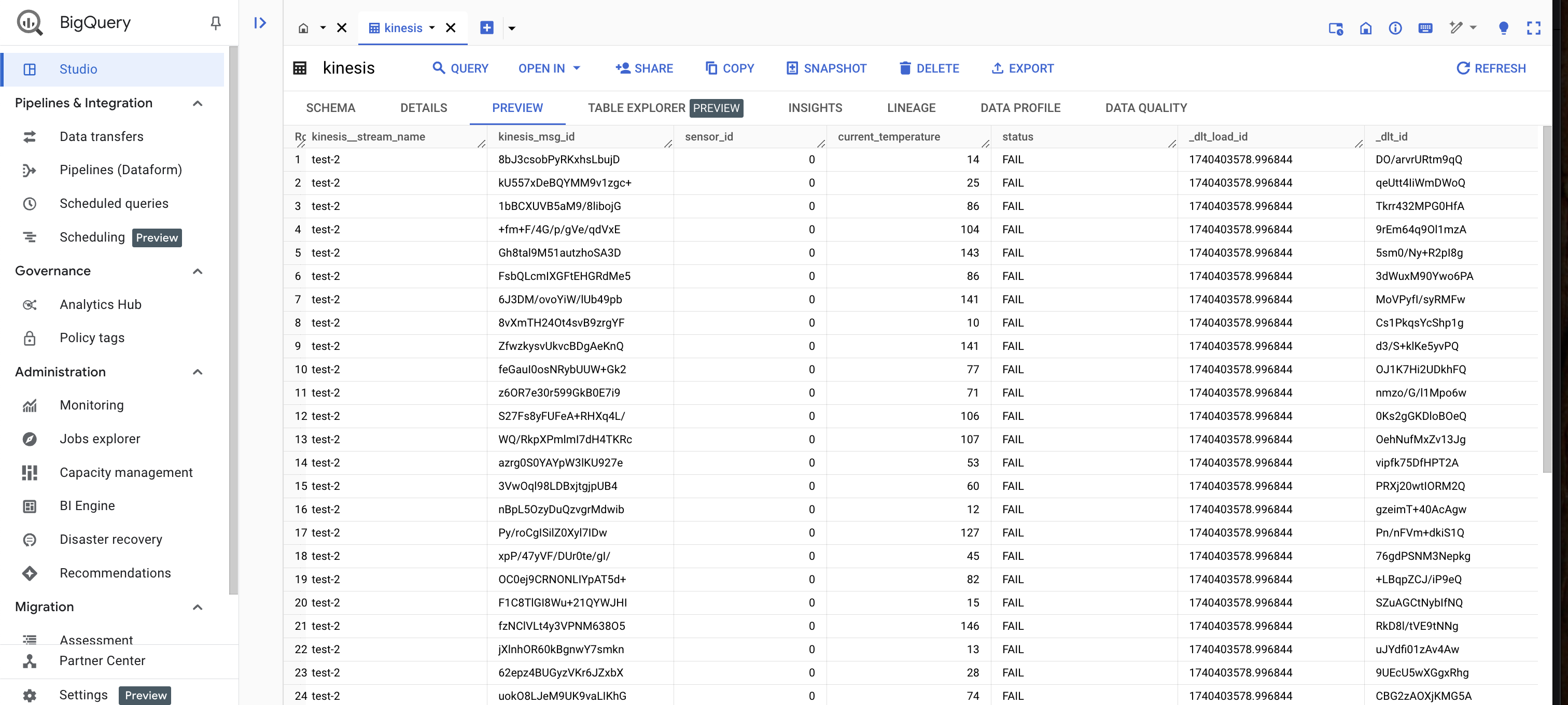
Step 6: Verify Data in BigQuery
Once the command runs successfully, your Kinesis data will be available in BigQuery. Follow these steps to verify the data:
Open the BigQuery Console and select your project.
In the left-hand side panel:
Expand your project.
Navigate to the appropriate dataset and click on the table name.
Select the “Preview” tab to view a sample of the ingested data.
Confirm that rows are present and fields appear as expected.
Go to the “Query” tab and run a basic query to inspect your data more closely. For example:
SELECT * FROM `project-name.dataset.results` LIMIT 100;
Ensure that the retrieved data matches what was expected from the Kinesis stream.
Example Output
After running the ingestion process, your Kinesis data will be available in BigQuery. Here’s an example of what the data might look like:
Congratulations
You have successfully loaded data from Amazon Kinesis to BigQuery using omniload.