LinkedIn Ads
LinkedIn Ads is a platform that allows businesses and marketers to create, manage, and analyze advertising campaigns.
omniload supports LinkedIn Ads as a source.
URI format
The URI format for LinkedIn Ads as a source is as follows:
linkedinads://?access_token=<access_token>&account_ids=<account_ids>
URI parameters:
access_token(required): It is used for authentication and is necessary to access data and reports through the LinkedIn Ads API. The access token lets your app access data using the permissions you set in the Developer App for your LinkedIn account.account_ids(required): The comma-separated list of Ad Account IDs specifies the LinkedIn Ad Accounts for which you want to retrieve data. These IDs uniquely identify the LinkedIn Ad Accounts associated with a company, business, or individual, depending on the ownership of the Ad Accounts. They are required to fetch data for campaigns, creatives, and other related resources.
LinkedIn Ads requires an access_token and account_ids to retrieve reports from the LinkedIn Ads API. Please follow these steps to obtain the access_token and account_ids
Create a LinkedIn developer application to obtain an access token
Log in to LinkedIn with a developer account
Click Create App. Please fill out:
App Name
Your company’s LinkedIn page
Your company’s privacy policy URL
Your company logo
Accept the terms and click “Create App”
To verify your app:
Go to “Settings” tab
Find “App Settings”
Click “Verify” under Company
Click “Generate URL”
Send this URL to your Page Admin
Click “I’m done” and open the URL in a new tab to verify, if you are the admin of your page.
Go to the “Products” tab, and click “Request access” for the Advertising API. It will take about a few minutes to get approved and then you need to fill out the form where you have to provide your company name, website, and other details.
Tables
LinkedIn Ads source allows ingesting the following sources into separate tables:
Table |
PK |
Inc Key |
Inc Strategy |
Details |
|---|---|---|---|---|
id |
– |
replace |
Retrieves all ad accounts accessible by the authenticated user. |
|
user, account |
– |
replace |
Retrieves users associated with each ad account. |
|
id |
– |
replace |
Retrieves campaign groups for each ad account. |
|
id |
– |
replace |
Retrieves campaigns for each ad account. |
|
id |
– |
replace |
Retrieves creatives for each ad account. |
|
id |
– |
replace |
Retrieves conversion rules for each ad account. |
|
id |
– |
replace |
Retrieves lead generation forms for each ad account. |
|
id |
date (interval) |
merge |
Retrieves lead form responses for each ad account. |
|
dmp_segments |
id |
– |
replace |
Retrieves matched/retargeting audience segments (sizes, match rates, rules) for each ad account. |
insight_tags |
id |
– |
replace |
Retrieves Insight Tag configuration and installation status for each ad account. |
insight_tag_domains |
domainName, account_id |
– |
replace |
Retrieves domains associated with Insight Tags for each ad account. |
[dimension, date] or [dimension, start_date, end_date] |
date (daily) or start_date (monthly) |
merge |
Custom reports allow you to retrieve data based on specific dimensions and metrics. |
Use these as --source-table parameter in the omniload ingest command.
Example
Retrieve all campaigns:
omniload ingest \
    --source-uri "linkedinads://?access_token=token_123&account_ids=id_123,id_456" \
    --source-table 'campaigns' \
    --dest-uri 'duckdb:///linkedin.duckdb' \
    --dest-table 'dest.campaigns'
Retrieve lead form responses for a specific date interval:
omniload ingest \
    --source-uri "linkedinads://?access_token=token_123" \
    --source-table 'lead_form_responses' \
    --dest-uri 'duckdb:///linkedin.duckdb' \
    --dest-table 'dest.lead_form_responses' \
    --interval-start '2024-01-01' \
    --interval-end '2024-02-01'
If you omit --interval-end, omniload fetches responses from --interval-start up to the current time.
Custom Reports
The custom table uses LinkedIn’s Analytics Finder API to pull advertising performance reports. This allows you to retrieve metrics like impressions, clicks, and conversions broken down by dimensions such as campaign, account, or creative.
Format:
custom:<dimensions>:<metrics>
Parameters:
dimensions(required): A comma-separated list of dimensions is required. It must include at least one entity dimension and one time-based dimension (dateormonth).Entity dimensions:
campaign,account,creativeDemographic dimensions:
member_job_title,member_seniority,member_industry,member_company_size,member_companydate: group the data in your report by daymonth: group the data in your report by month
metrics(required): A comma-separated list of metrics to retrieve.
Note
By default, omniload fetches data from January 1, 2018 to today’s date. You can specify a custom date range using the --interval-start and --interval-end parameters.
Custom Reports Examples
Retrieve data for campaign with account_ids id_123 and id_456:
omniload ingest \
    --source-uri "linkedinads://?access_token=token_123&account_ids=id_123,id_456" \
    --source-table 'custom:campaign,date:impressions,clicks' \
    --dest-uri 'duckdb:///linkedin.duckdb' \
    --dest-table 'dest.campaign'
The applied parameters for the report are:
dimensions:
campaign,datemetrics:
impressions,clicks
Retrieve data for creative with account_ids id_123 and id_456 for the date range from 2024-10-15 to 2024-12-31:
omniload ingest \
    --source-uri "linkedinads://?access_token=token_123&account_ids=id_123,id_456" \
    --source-table 'custom:creative,month:impressions,shares,videoCompletions' \
    --dest-uri 'duckdb:///linkedin.duckdb' \
    --dest-table 'dest.creative'
    --interval-start '2024-10-15'
    --interval-end '2024-12-31'
The applied parameters for the report are:
dimensions:
creative,monthmetrics:
shares,impressions,videoCompletions
omniload ingest \
    --source-uri "linkedinads://?access_token=token_123&account_ids=id_123,id_456" \
    --source-table 'custom:account,month:totalEngagements,impressions,' \
    --dest-uri 'duckdb:///linkedin.duckdb' \
    --dest-table 'dest.account'
The applied parameters for the report are:
dimensions:
account,monthmetrics:
totalEngagements,impressions
Demographic Reports
You can use demographic dimensions to audit targeting quality. For example, to retrieve impressions and clicks broken down by job title:
omniload ingest \
    --source-uri "linkedinads://?access_token=token_123&account_ids=id_123,id_456" \
    --source-table 'custom:member_job_title,date:impressions,clicks' \
    --dest-uri 'duckdb:///linkedin.duckdb' \
    --dest-table 'dest.job_title_report'
Available demographic dimensions: member_job_title, member_seniority, member_industry, member_company_size, member_company.
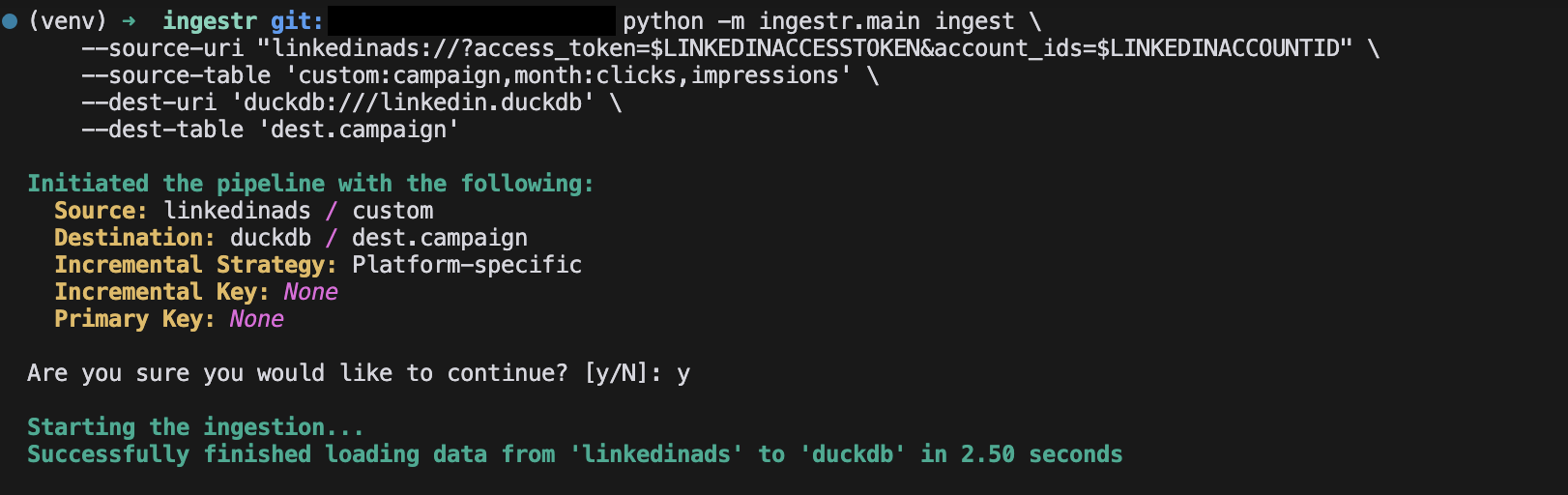
This command will retrieve data and save it to the destination table in the DuckDB database.